Why Using the Right Products Is Important to Clean a Laptop
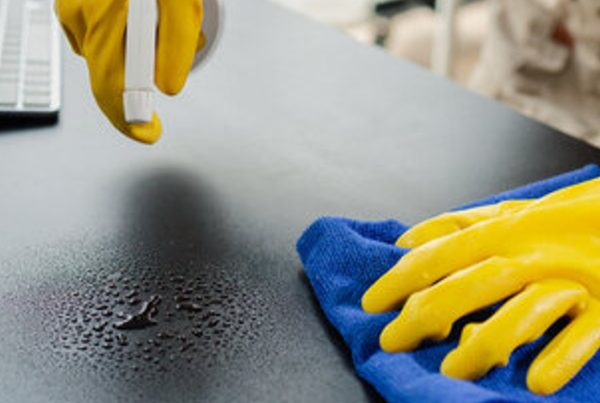
Using the wrong cleaning products on your laptop screen, keyboard, or exterior surfaces can cause significant damage. Many common household cleaners contain harsh chemicals or abrasive materials that can scratch surfaces, strip away protective coatings, discolor components, or introduce excess moisture into sensitive areas.
Laptop screens often feature anti-glare or anti-reflective coatings that are particularly sensitive to improper cleaning solutions. Additionally, excess moisture can seep into keyboards, ports, and other internal components, potentially leading to performance issues, costly repairs, or even premature device failure.
Cleaning Products to Avoid on Laptops
The following products should generally be avoided unless specifically labeled as safe for use on electronic devices:
- Ammonia-based and bleach cleaners: Strong chemicals that can damage protective coatings and corrode or discolor metal and plastic components.
- Vinegar: Highly acidic and can degrade certain metals, plastics, and protective finishes used in laptop construction.
- Paper towels: Their rough texture can create fine scratches on screens and laptop surfaces.
- Dish soap: Can leave behind residue and, when used with excessive moisture, may contribute to damage to internal components.
- Glass and window cleaners: Often contain ammonia or other harsh chemicals that can stain, discolor, or damage laptop screens and plastics.
- Baby wipes: Frequently contain fragrances, moisturizers, and other additives that can leave residue and potentially harm sensitive surfaces.
- Abrasive brushes: Hard-bristled brushes can scratch surfaces, remove protective coatings, and leave permanent marks.
- Hand sanitizer and standard rubbing alcohol: May contain additives or concentrations that can cause discoloration, streaking, smudging, or damage to screen coatings.
Using any of the products listed above can potentially do more harm than good if they are not specifically designed for electronics. Before cleaning your laptop, always read product labels, follow manufacturer recommendations, and verify that the cleaner is safe for electronic devices.
In the sections below, we’ll review recommended laptop-safe cleaning products and provide step-by-step instructions for effectively removing dust, fingerprints, smudges, and grime from your laptop’s screen and keyboard while helping protect your device from damage.
How to Clean a Laptop Screen
A dirty laptop screen can make text and images difficult to see, reducing both productivity and the overall user experience. Regular cleaning removes dust,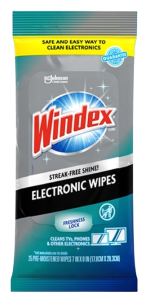 fingerprints, and smudges while helping preserve delicate screen coatings. Since many laptop screens feature anti-glare or anti-reflective coatings, it is important to use screen-safe cleaning products to avoid damaging these sensitive surfaces and to help extend the life of your device.
What You’ll Need:
Step-by-Step Instructions to Clean a Laptop Screen:
- Step 1: Power off and unplug your laptop before cleaning. This helps protect the device and makes dust, fingerprints, and smudges easier to see on the dark screen.
- Step 2: Using a clean microfiber cloth, gently remove any loose dust from the screen. If dust has accumulated around the edges of the display, use a compressed air duster to carefully clear those areas.
- Step 3: Wipe the screen with an electronics wipe using light pressure. Move in a circular motion or wipe from side to side, taking care not to press too firmly on the display.
- Step 4: Use a clean, dry microfiber cloth to buff away any remaining moisture or streaks, leaving the screen clean and clear.
- Step 5: Allow the screen to dry completely before powering the laptop back on.
How to Clean a Laptop Keyboard
Dust, crumbs, and debris can accumulate quickly between laptop keys. Fortunately, a combination of a compressed air duster and electronics-safe cleaning wipes is one of the most effective ways to keep your keyboard clean.
The straw attachment on a compressed air duster helps remove dust and debris from hard-to-reach areas between keys, while electronics-safe wipes effectively remove fingerprints, oils, and surface grime. Regular cleaning can help prevent buildup from reaching internal components and may extend the lifespan of your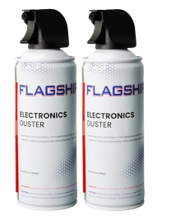 keyboard.
What You’ll Need:
Step-by-Step Instructions to Clean a Laptop Keyboard:
- Step 1: Power off and unplug your laptop to prevent accidental key presses and protect the device during cleaning.
- Step 2: Position the laptop at approximately a 75-degree angle to help loosened debris fall away from the keyboard.
- Step 3: Position the compressed air duster’s straw attachment about 6 inches from the keyboard and use short bursts to remove dust and debris from between the keys.
- Step 4: Use a microfiber cloth to wipe away any remaining dust or particles from the keyboard surface.
- Step 5: Gently wipe the keys and surrounding surfaces with electronics wipes. Avoid excessive moisture and take care not to allow liquid to seep between the keys or into the laptop.
- Step 6: Allow the keyboard to dry completely before turning the laptop back on.
Following these steps with the proper cleaning products will safely and effectively remove dust, fingerprints, smudges, and other grime without damaging your laptop’s screen or keyboard. For best results, clean your screen regularly to maintain a crisp, professional-looking display.
How Often Should You Clean a Laptop
Regular cleaning helps extend the life of your laptop while preventing dust and debris from accumulating in sensitive areas. A thorough cleaning should be performed at least once a month, or weekly for laptops that are used heavily or in dusty environments.
For daily maintenance, use a dry microfiber cloth to remove fingerprints and light dust. Regular cleaning helps prevent buildup and keeps your laptop looking and performing its best.
Shop electronic wipes and compressed air dusters at W.B. Mason